LINE Thai English Translation: A Reply Workflow for Sales Teams
Translate Thai buyer messages in LINE, draft English replies and review Thai output. Compare LINE desktop translation, group bots and a two-way client workflow.
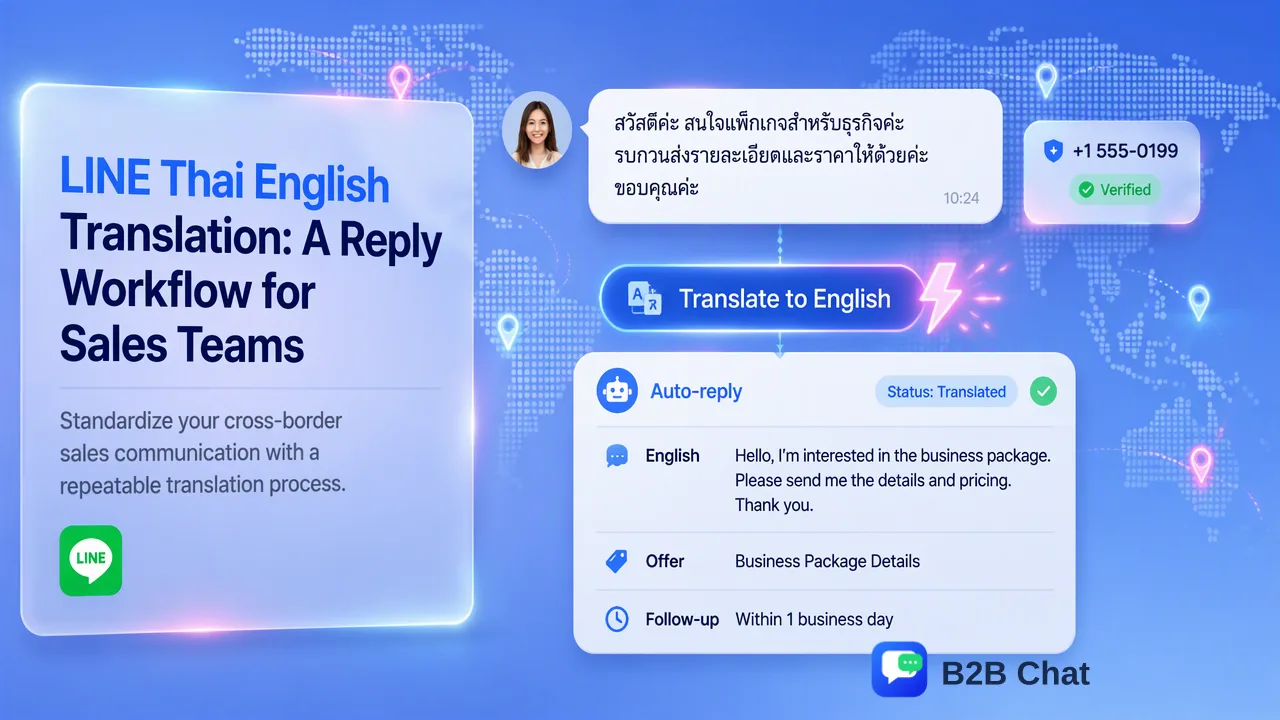
LINE’s own PC translation helps with individual messages; teams need a repeatable process for both directions.
LINE Thai English translation can begin in LINE for Windows or Mac: right-click a chat message, choose Translate, and select Thai and English. For ongoing buyer conversations, staff also need to prepare and review the reply in Thai. A desktop client with two-way translation can reduce the repeated copying that comes with handling many LINE accounts.
What LINE itself translates on a computer
The LINE Help Center documents message translation in the Windows and Mac app. Open a chat, right-click the message, choose Translate, select the source and target languages, then translate. The source can be detected automatically, and LINE lists Thai and English among the supported chat-translation languages. This is a useful option for reading a particular buyer message; a team should not assume it translates an entire one-to-one sales conversation automatically.
LINE also documents Text scan for text inside images, including Thai as a source language and English as a target in supported cases. That is relevant when a buyer sends a photo of a label or document. It is a different task from translating the chat text itself. Scan the image, then compare the extracted wording with the visible photo before relying on a model number, address or quantity.
For ordinary text, test the official feature first. If a sales desk gets only a few Thai inquiries, a staff member may be able to translate one message, draft a reply in English and ask a Thai-speaking colleague to check the final Thai. The process gets harder when the team must do this repeatedly across several accounts and shifts. The bottleneck is usually not finding a Translate menu; it is keeping the original question, the draft answer and the final Thai response aligned.
A Thai-to-English-to-Thai response sequence
Start by reading the buyer’s Thai message in its conversation. Translate it to English, then classify the request: product information, quantity, availability, shipping, payment or after-sales support. Extract exact facts separately from the general meaning. A part number should stay a part number; a requested date should not become a promised date. If the buyer uses a term that could mean two sizes or grades, ask which one they mean.
Next, draft a short English response that the team can verify. Put one action or question in each sentence. For example, ask for the product code and required quantity before offering to prepare a quotation. Do not fill gaps with estimated specifications. Then translate the response to Thai and read it back against the English intention. A Thai-speaking reviewer should check tone and commercial terms when the message commits the company to a price, lead time, warranty or custom order.
Finally, send from the LINE account responsible for that customer and record the open item for the next shift. If the buyer replies with a correction, update the record rather than simply reusing the original translation. A bilingual response process should treat translation as a draft aid and the buyer’s actual wording as the source of truth.
When a group translator bot is the wrong shape
LINE has official translator accounts in its ecosystem; a LINE notice lists English–Thai and Thai–English translator accounts. A group translator can make shared multilingual discussion readable, but a one-to-one sales exchange has a different shape. Adding another participant or forwarding a buyer’s message changes who receives the text and where the reply is prepared. Teams should check the account’s current availability and behavior before making it part of a customer workflow.
For a private buyer conversation, the simplest decision rule is to keep the conversation where the buyer initiated it, and translate on the staff side when possible. If a group is deliberately bilingual and members want translations visible to everyone, a translator account may be worth testing. If the customer shares a private address, pricing request or complaint, decide whether that text should be sent through a separate account at all. This is a workflow and privacy decision for the team, not a blanket judgment about every translation bot.
| Situation | Useful starting point | Main review question |
|---|---|---|
| Occasional Thai message in LINE PC | Right-click and Translate | Did the translation preserve the requested item? |
| Image containing Thai text | LINE Text scan | Did extraction preserve codes and numbers? |
| Deliberately multilingual group | Test a translator account | Who receives and sees its output? |
| Repeated private chats across accounts | Staff-side two-way translation | Was the outgoing Thai checked before sending? |
Keep translation close to the sales conversation
B2B Chat’s desktop client runs multiple LINE accounts and provides automatic language detection with context-aware, two-way translation. That helps a staff member read the Thai buyer message and prepare a Thai reply within the account workflow instead of switching between a chat window and a separate translation task. Its translation capability covers 200+ languages, including the Thai–English use case, but a reviewer still needs to check the exact content that will be sent.
The team can standardize a small review checklist: account and customer; item code and quantity; dates and units; whether the response is a question or a commitment; Thai wording; and whether a colleague must approve the answer. A shared reply library can hold approved patterns for asking missing details, while the customer record carries the context particular to that buyer. This makes handovers more dependable than a folder of copied translations.
If staff cannot review Thai directly, arrange review for high-stakes statements and ask clarifying questions for ambiguous requests. Keep the original text accessible. A machine-translated reply can be fluent while expressing the wrong level of certainty; the safest improvement is a clear source draft and a defined human check at the points where wording changes the deal.
FAQ
How can teams translate Thai messages in LINE for PC?
Right-click an individual message, choose Translate, and set Thai and English as source and target. LINE documents this for Windows and Mac.
How can teams translate Thai text in an image sent through LINE?
Use LINE Text scan where supported, then compare names, numbers and addresses against the original image before acting.
How can teams prepare an English answer for a Thai buyer?
Draft the answer in verifiable English, translate it to Thai, and review exact commercial terms and tone before sending from the correct LINE account.
How can teams choose between a translator account and a desktop client?
A translator account may suit a group that wants shared translated posts. For repeated private buyer chats, staff-side two-way translation can keep the exchange in its original conversation.
Learn More
Choose the product information that fits the next step in your workflow.