How to Run More Than Two WhatsApp Accounts on One Computer
WhatsApp's own tools stop at about two accounts on a PC or Mac. Compare browser profiles and a multi-account desktop client for a third, fourth or tenth number.
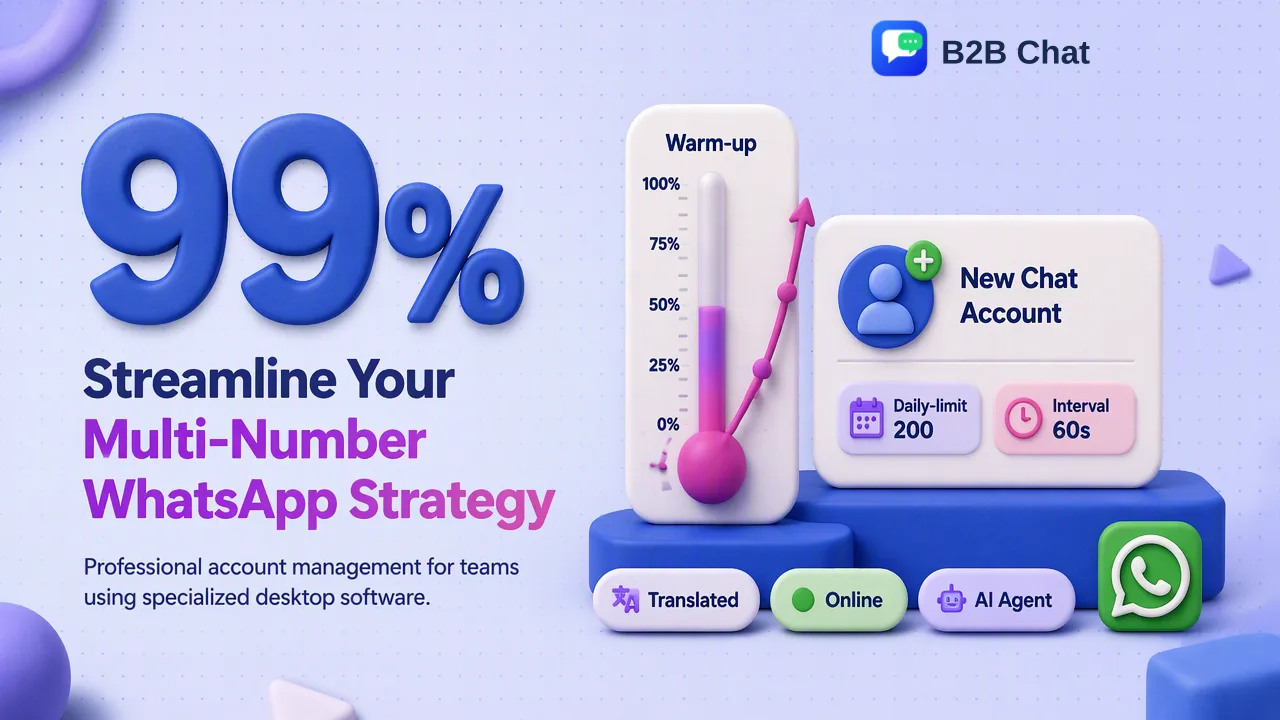
What WhatsApp itself supports on a computer, why browser workarounds get messy beyond two numbers, and a step-by-step setup for running several accounts in one desktop client.
To run more than two WhatsApp accounts on one computer, each number needs its own separate session, because WhatsApp Desktop and each WhatsApp Web browser profile show only one account at a time. The official app's account switching works on phones, not on a computer. The common routes are one browser profile per number, which becomes hard to manage beyond two or three, or a multi-account desktop client that keeps every number in its own session inside one window.
What WhatsApp itself supports on a computer
WhatsApp's own multi-account features are designed around phones. The announcement of multiple accounts describes two accounts on one phone, each needing its own number and SIM, or a phone with multi-SIM or eSIM. The help page How to switch accounts on WhatsApp states that multiple accounts are currently supported only on mobile devices and that the feature is not available on linked devices.
On a computer, WhatsApp runs as a linked device of a phone:
- WhatsApp Desktop for Windows and macOS, which according to the desktop download page still needs a phone to register the account and link new devices.
- WhatsApp Web, which links one account per browser session by scanning a QR code.
Each of these sessions shows one account. So the honest starting point is that WhatsApp offers roughly two accounts on a computer by combining Desktop with Web, and anything beyond that depends on how you separate sessions.
The usual way to get a second account
Most guides that rank for this question describe the same two-account setup:
- Install WhatsApp Desktop and link it to the first number.
- Open WhatsApp Web in a browser and link it to the second number by scanning the QR code with the second phone.
This works and it is the right answer for someone with one work number and one personal number. It also explains why searches for a third or fourth account produce so many browser tricks: the official pieces run out after two.
Why browser-profile tricks get messy at three or more numbers
Each additional number needs another isolated browser session: a second browser, a separate Chrome or Edge profile, or a Firefox container. Technically that scales. Operationally it degrades quickly:
| Number of accounts | Typical setup | What starts to go wrong |
|---|---|---|
| 2 | Desktop app + WhatsApp Web | Manageable; two windows to watch |
| 3–4 | Desktop app + two or three browser profiles | Unclear which window is which number; notifications look identical |
| 5–10 | Several browsers and profiles per computer | Windows pile up, memory use rises, sessions drop out and need re-linking |
| Several staff | Profiles copied onto each employee's computer | No shared view, nobody knows which chats are covered |
Beyond the clutter, three practical issues appear:
- Sessions depend on many phones. Every number's phone must link the session and come online regularly, or the linked session is logged out.
- Replies are inconsistent. Each profile has its own typed snippets, so pricing and shipping answers drift between numbers.
- Translation is copy and paste. For buyers writing in Spanish, Portuguese or Indonesian, staff move text between WhatsApp and a translator tab, one message at a time.
None of this breaks WhatsApp; it just makes three or more numbers slow to run from a browser.
How to run more than two WhatsApp accounts on one computer with a desktop client
A multi-account desktop client replaces the stack of browsers with one window in which each number has its own session. B2B Chat is a Windows and macOS client built for this; the WhatsApp multi-account management page describes the approach. A typical setup looks like this:
- Prepare the numbers. Each WhatsApp account needs its own phone number registered on a phone. Keep those phones charged and labelled with the number and market.
- Install the client. Download the desktop client for Windows or macOS and sign in with the activation code for that working session. Codes can be restricted to one device if the team wants each computer controlled separately.
- Add accounts one at a time. Add the first number, confirm its chats load, then add the next. Name each account by market or role, for example "MX sales" or "ID after-sales", so staff never guess.
- Group accounts by who handles them. Decide which person or shift covers which numbers and set up support seats accordingly in the CRM console.
- Load a shared reply library. Add standard answers on pricing requests, lead times and payment methods once, so every account uses the same wording.
- Turn on translation where buyers write in other languages. Two-way WhatsApp chat translation shows incoming messages in the agent's language and sends replies in the buyer's, with automatic language detection.
- Pace new numbers. For a newly registered number, use warm-up rules to ramp activity gradually over several days. Warm-up schedules help keep pacing consistent; they do not override WhatsApp's rules.
The result is one window where a salesperson can see which number a buyer wrote to, answer in the buyer's language and use the same approved replies as the rest of the team.
A checklist before adding the third number
Run through these points before multiplying accounts on one machine:
- A real purpose for each number. Separate numbers per market, brand or after-sales queue are easy to justify; numbers created only to send more messages are not.
- Messaging that follows WhatsApp's rules. The WhatsApp Business Messaging Policy expects businesses to message people who have given their number and agreed to be contacted. More accounts do not change that.
- Official apps only. WhatsApp's help page on unofficial apps warns that modified versions violate its Terms of Service. Stay with the official app on the phone that registers each number.
- A named owner for every number. Write down who is responsible for each account and its phone.
- Hardware headroom. Several active sessions with media use memory; an office computer with modest specs may need an upgrade.
- An offboarding step. When a staff member leaves, the accounts and records should stay with the business, not on a personal device.
Common mistakes when running several numbers
- Mixing personal and company numbers in the same setup. Keep personal accounts on the phone and company accounts in the shared workspace.
- Using one generic name for every account. "WhatsApp 1" to "WhatsApp 6" means wrong-number replies within a week.
- Letting phones go offline for weeks. Store registration phones somewhere they stay charged and connected.
- Skipping human review of translated quotes. Machine translation helps with routine messages; prices, specifications and contract terms deserve a second look before sending.
- Adding many new numbers at once. Bring accounts in gradually, so problems with one number are easy to trace.
FAQ
Can WhatsApp Desktop show two accounts at the same time?
No. WhatsApp's help pages state that multiple accounts are currently supported only on mobile devices and not on linked devices, and WhatsApp Desktop is a linked device. A second account on the same computer usually runs in WhatsApp Web or in a separate client.
How many WhatsApp accounts can a team run on one computer?
There is no single fixed number; it depends on how sessions are separated, the computer's resources and how many conversations staff can follow. Browser profiles become hard to manage past two or three numbers, while a multi-account desktop client keeps many numbers organised in one window.
Does every WhatsApp account on the computer need its own phone?
Each account needs its own phone number registered on a phone, because WhatsApp uses the phone to register the account and link computer sessions. Two numbers can share one dual-SIM or eSIM phone through WhatsApp's two-account feature.
How can teams keep replies consistent across several WhatsApp numbers?
Agree on standard answers for the most common questions and store them in a shared reply library rather than in each person's notes. Review the library monthly, and route prices and specifications through a lead before they change.
Learn More
Choose the product information that fits the next step in your workflow.