WhatsApp Auto Reply Setup for Teams Running Several Accounts
Set up greeting and away messages in WhatsApp Business, see where they stop scaling across several numbers, and keep keyword replies consistent.
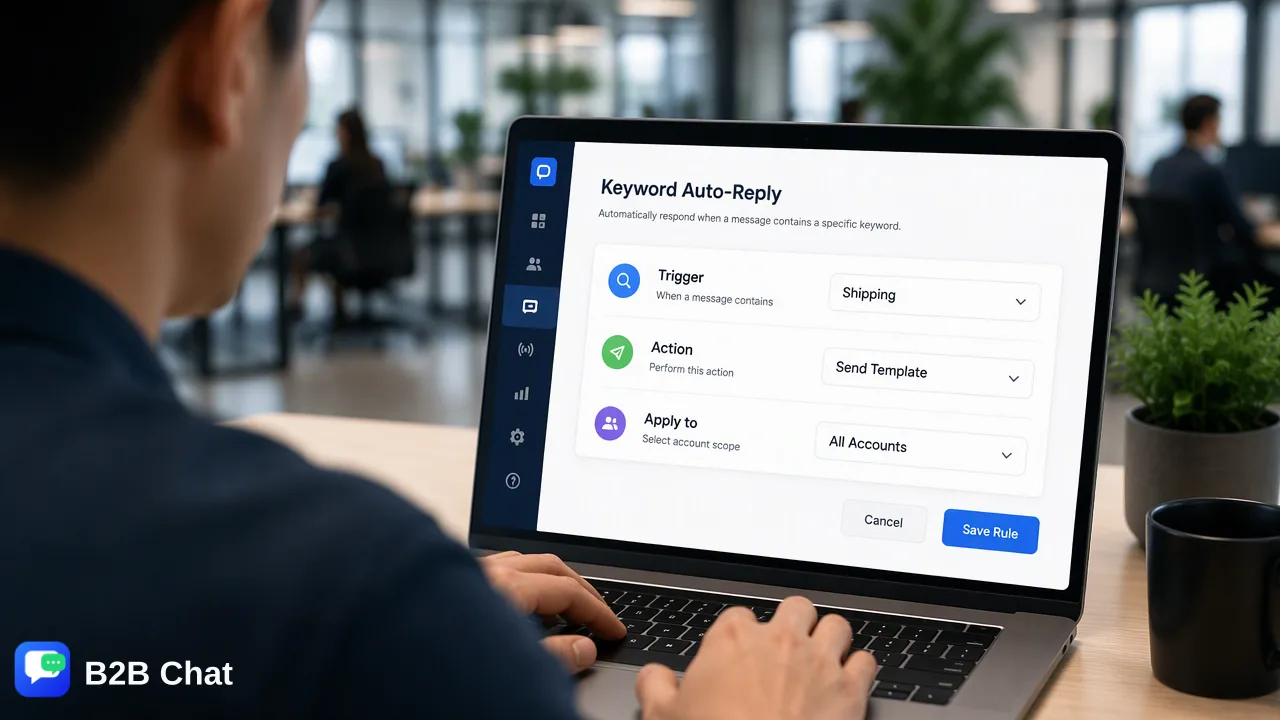
A step-by-step WhatsApp auto reply setup for the Business app, plus a keyword reply library and routing rules for teams that run several numbers.
For a single number, WhatsApp auto reply setup takes a few minutes in the WhatsApp Business app: set business hours, then switch on a greeting message and an away message under Business tools. Once a team runs several numbers, those settings live separately on each phone, cannot react to keywords, and drift apart. Teams in that position usually move to one shared reply library with keyword auto-replies, and route anything that needs judgment to a person.
WhatsApp auto reply setup in the WhatsApp Business app
The free WhatsApp Business app has two automatic messages and one manual shortcut. WhatsApp describes them on its business app features page: greeting messages for new customers, away messages for messages received outside business hours, and quick replies as shortcuts for messages sent often.
Setup on one phone, in this order:
- Set business hours first. Open the business profile and enter opening hours. The away message's "outside of business hours" schedule reads from these hours, so an empty profile means the away message fires at the wrong times.
- Turn on the greeting message. Go to Settings → Business tools → Greeting message, switch it on, write two or three lines, and choose recipients (everyone, contacts not in the address book, or selected numbers).
- Turn on the away message. In Business tools → Away message, pick a schedule: always send, a custom schedule, or outside of business hours. Say when a person will reply, not just that nobody is available.
- Add quick replies. Save answers to frequent questions (delivery time, how to order) with a shortcut such as /shipping. These are not automatic: an agent still chooses and sends them.
- Test from another phone. Message the business number from a number that is not a saved contact, once inside and once outside business hours.
Menu labels differ slightly between Android, iOS and app versions, but the three features sit together under Business tools.
What the built-in auto replies cover and what they do not
| Need | Greeting / away message | Quick replies |
|---|---|---|
| Welcome a first-time buyer | Yes, one fixed text | Manual |
| Reply after hours | Yes, one fixed text per schedule | Manual |
| Answer "price?" or "shipping to Jakarta?" differently | No keyword logic | Agent picks the right shortcut |
| Same wording on five numbers | Configure each phone separately | Re-create on each phone |
| Update one answer everywhere | Edit every phone | Edit every phone |
For one shop owner this is enough. The gap appears when the question is specific (stock, sizes, delivery to a region) and the only automatic answer available is a generic welcome.
Why auto replies stop scaling once a team runs several numbers
Cross-border sales teams rarely stay on one number. A typical setup has a number per market, per marketplace store or per salesperson. Each number then carries its own copy of the greeting, away message and quick replies, and three problems follow:
- Drift. One agent updates the shipping time on their phone; the other four numbers keep the old answer.
- No keyword handling. The app cannot send a size chart when a buyer types "size" or bank details when they type "payment". Agents type or paste the same answer dozens of times a day.
- Hidden coverage gaps. Away messages depend on each phone's settings. When one number has no schedule, after-hours buyers on that number get silence and nobody notices.
The fix is less about more automation and more about having one place where approved answers live and one view of every number.
Setting up keyword auto-replies and a shared reply library in B2B Chat
B2B Chat runs several WhatsApp accounts (as well as Telegram and LINE accounts) in one desktop client, with management in a separate CRM console. See WhatsApp multi-account management for how the accounts sit side by side.
Setup
- Install the client and add accounts. The client is available for Windows and macOS on the download page; each WhatsApp account is logged in inside it.
- Build the reply library in the CRM console. It holds single replies, greetings and longer scripts. Write each approved answer once: delivery times per region, order steps, return conditions.
- Create keyword auto-replies. A keyword auto-reply sends a library entry when an incoming message contains a configured matching word, for example "ongkir" or "envío" for shipping questions. Start with five to ten keywords taken from the questions agents answer most.
- Assign support seats. Give each agent a seat so it is clear who owns which conversations.
Daily operation
- Change an answer in the library once instead of on every phone.
- Review which keywords fire and which buyer messages still reach agents unanswered; add or tighten keywords weekly.
- Agents send library replies by hand when a keyword would be too risky to automate.
Keyword auto-replies only match words. When the question needs context from earlier in the chat, an AI agent is a separate option: see AI customer service. It reads conversation context and is billed per reply, unlike keyword rules.
Which messages to automate and which to route to staff
Automation works for questions with one correct, stable answer. Anything involving money, exceptions or an unhappy buyer belongs with a person. WhatsApp's Business Policy also expects businesses that automate conversations to offer clear escalation paths to a human.
| Incoming message | Keyword auto-reply | Route to staff |
|---|---|---|
| Opening hours, store link, catalog | Yes | No |
| Standard delivery time per region | Yes | If the order is late |
| How to pay | Yes, fixed instructions | Payment disputes |
| Price for a large or custom order | No | Yes |
| Complaint, refund, damaged goods | Short acknowledgement only | Yes |
| "Can I talk to someone?" | No | Yes, immediately |
End automatic answers with a line telling the buyer how to reach a person, such as replying "agent".
Common mistakes in WhatsApp auto reply setup
- Keywords that are too broad. "price" fires on "the price was wrong on my invoice". Use phrases or the buyer's language variants, and test against real past messages.
- Promising a reply time nobody can meet. "We reply within 5 minutes" on a number checked twice a day damages trust faster than no auto reply.
- Stacking messages. A greeting, an away message and a keyword reply arriving together reads like spam. Keep the greeting short and let the keyword answer carry the content.
- Auto replies to people who did not start the chat. Automation should answer buyers, not open conversations with strangers.
- Never reviewing the library. Shipping times, holidays and payment instructions change; schedule a monthly review.
FAQ
How can teams set up a WhatsApp away message only outside business hours?
Enter opening hours in the WhatsApp Business profile first, then choose the "outside of business hours" schedule under Business tools → Away message. Without saved hours the schedule has nothing to read from.
Can the WhatsApp Business app reply automatically based on keywords?
No. The app offers a greeting message, an away message and manual quick replies. Keyword-triggered answers need a separate tool, such as keyword auto-replies built from a shared reply library.
How can teams keep auto replies identical across several WhatsApp numbers?
Keep approved answers in one shared reply library and trigger them from there, rather than copying greetings and quick replies onto each phone. Updating one entry then changes the answer for every number that uses it.
What is the difference between a keyword auto-reply and an AI agent reply?
A keyword auto-reply sends a fixed library entry when a configured word appears. An AI agent reads the conversation context to draft a reply for routine questions and is billed per reply. Many teams use keywords for fixed facts and keep judgment calls with staff.
Learn More
Choose the product information that fits the next step in your workflow.