WhatsApp Linked Devices for Teams: Sharing One Number Across Staff Without Losing Track
How the four-device limit, the 14-day phone rule and shared chat history play out when several staff answer one WhatsApp number, plus house rules that help.
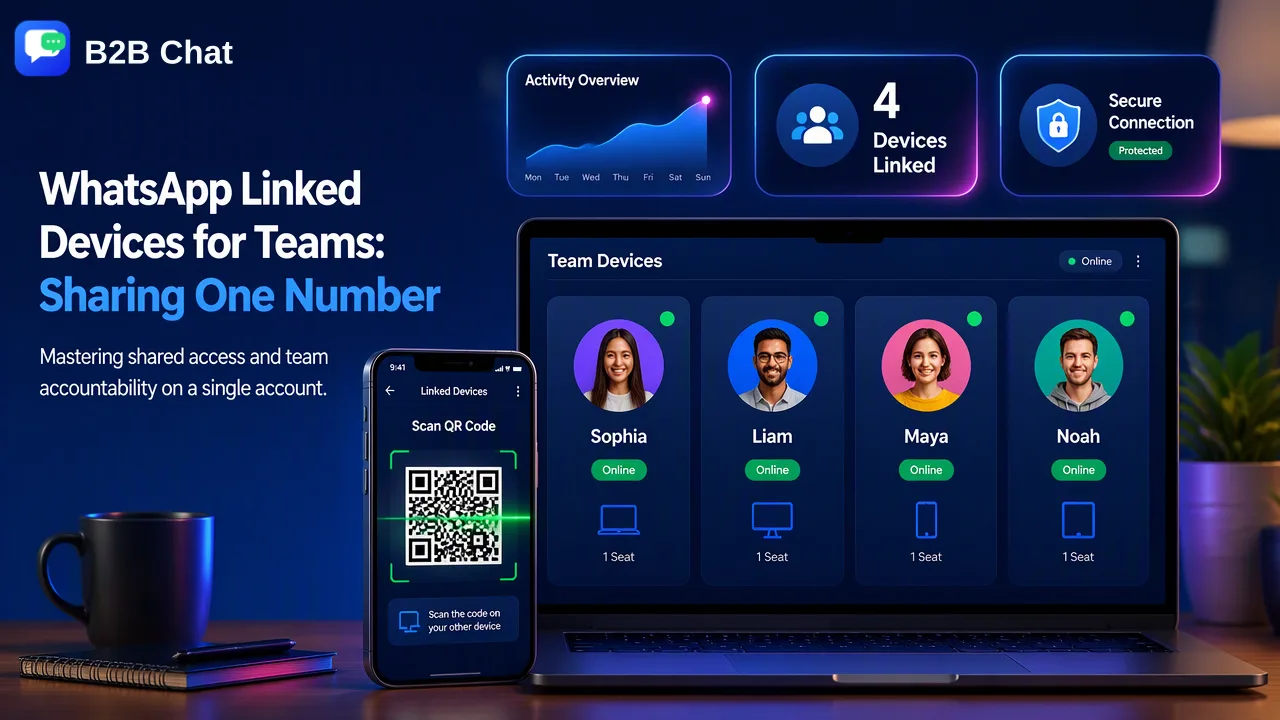
A practical guide to using WhatsApp linked devices for teams: what WhatsApp documents, where shared access gets confusing, and how seats and shared records organize the work.
WhatsApp linked devices for teams work as shared access, not as a team system. One primary phone can link up to four other devices, such as WhatsApp Web, WhatsApp Desktop or a second phone, and every one of them reads and sends as the same number. What WhatsApp does not add is a separate login per person, a record of which colleague wrote a reply, or a shared place for customer notes. Teams that rely on linked devices therefore need clear house rules, and teams that outgrow four screens usually look at the Business app's multi-agent option or a desktop workspace with support seats.
What WhatsApp's linked devices actually provide
WhatsApp describes linked devices as companions to one account. According to its help page About linked devices, you can link up to four devices at a time to your primary phone. The WhatsApp announcement on using one account across multiple phones adds that each linked device connects to WhatsApp independently, so a companion keeps working when the primary phone is offline.
A few documented rules shape how a team can use this:
- The primary phone stays in charge. WhatsApp's desktop download page notes that a phone is still needed to register the account and to link new devices.
- The 14-day rule. Linked devices are logged out if the primary phone is not used for more than 14 days, so the phone cannot sit in a drawer indefinitely.
- Linking is done from the phone. The steps in How to link a device start from the Linked devices menu on the primary phone, where you scan a QR code shown on the new device.
- Everyone is the same sender. A buyer sees one business number and one name, whichever colleague typed the message.
For two or three people covering one inbox, that is often enough. The difficulties come from what linked devices leave out, not from what they do.
Setting up WhatsApp linked devices for teams step by step
If a team decides to share one number across staff, a few minutes of setup avoids most of the confusion later.
- Choose who holds the primary phone. Usually a team lead or office manager. That phone registers the number, links new devices and has to be used at least once every 14 days.
- Decide which four devices get access. Write down which device belongs to which person, for example "Ana, office desktop" or "night shift laptop". Four is a hard ceiling, so every slot should map to a real person or shift.
- Link each device from the primary phone. Open Settings or the menu, go to Linked devices, tap Link a device and scan the QR code shown on the computer or second phone.
- Name and review the list. The Linked devices screen on the primary phone shows each session. Check it weekly and log out anything nobody recognises.
- Agree on house rules before the first busy day. The next section lists the ones that matter most.
- Remove access the day someone leaves. Logging the device out from the primary phone ends that session; waiting a week means a former colleague can still read customer chats.
Where shared access gets messy
Linked devices copy the whole chat list to every screen. That is helpful for coverage and confusing for ownership. These are the problems teams report most often, with a practical response for each:
| Situation | What happens on a shared number | What helps |
|---|---|---|
| Two people open the same chat | Both start typing; the buyer receives two different answers | A visible rule for who takes a new chat, such as by market or by shift |
| A reply needs checking later | The chat shows the business as sender, not the colleague | Staff add initials or keep a short internal log |
| A fifth person joins | The four-device ceiling is reached | Retire an unused device or move to a multi-agent or seat-based setup |
| Customer details are needed | Notes live in individual heads or private notebooks | A shared customer record or spreadsheet everyone updates |
| A salesperson leaves | Their device keeps access until someone logs it out | An offboarding checklist with "log out linked device" on it |
| Standard answers drift | Each person phrases shipping or payment terms differently | One agreed reply library, reviewed by a lead |
None of these issues are bugs. Linked devices were built so one person can use one account on several screens; a sales team simply asks more of them.
The WhatsApp Business app's multi-agent option
Before adding other tools, check what the official Business app now offers. WhatsApp's help page About multi-agent describes connecting more devices to a business account and assigning chats to sales agents. Without multi-agent the limit stays at four devices; with it, up to 10, depending on the benefits included in a Meta Verified or Meta One subscription. The same page notes that the feature may not be available to every business yet, and that if the subscription ends, only the four most recently active devices remain linked.
For a team that works from one number and wants chat assignment inside WhatsApp itself, this is the first option to evaluate. It still revolves around a single number and a single primary phone, so it fits less well when the team runs separate numbers per market, product line or salesperson.
House rules that keep a shared number orderly
Whatever tool sits underneath, a shared number works better with a few written rules:
- Ownership by default. New chats from Indonesia go to one person and chats from Mexico to another, or each shift owns everything that arrives during its hours.
- One reply at a time. If a chat shows unread messages and someone else has already replied in the last few minutes, leave it to them.
- Sign-offs on quotes. Adding a first name or initials to price quotes and order confirmations makes it possible to trace who promised what.
- Labels for status. The Business app's labels, such as "new lead", "quoted" or "waiting for payment", give everyone the same view of where a buyer stands.
- A handover note at the end of each shift. Two or three lines on open questions avoid the next person asking the buyer to repeat everything.
- A weekly device check. The team lead reviews the Linked devices list and removes anything unexpected.
These habits cost little and they carry over unchanged if the team later moves to a different setup.
Organizing the same work in a desktop workspace
Some teams outgrow the one-number model: they run a different WhatsApp number per market or per salesperson, they also sell on Telegram or LINE, or managers want to review conversations without borrowing a phone. A desktop workspace changes the unit of organisation from "devices linked to one phone" to "company accounts and the people who handle them".
B2B Chat is one example. Its Windows and macOS client runs the company's WhatsApp, Telegram and LINE accounts side by side, which is the approach described on the WhatsApp multi-account management page. Alongside the client, the CRM console covers the pieces that linked devices leave out:
- Support seats for the people handling conversations, instead of anonymous devices.
- Customer records so notes about a buyer stay with the business, not with one employee.
- A shared reply library with single replies, bulk scripts and greetings, so standard answers stay consistent.
- Activation codes that identify each working session and can be restricted to one device.
- Sensitive-word controls a manager can configure for outgoing messages.
Because the accounts belong to the company workspace, a departing salesperson's conversations stay where the next person can pick them up. Each number still has to be registered on a phone, and WhatsApp's own rules continue to apply to every account. Teams that want to try the workflow can download the desktop client for Windows or macOS.
Choosing between the three setups
| Need | Linked devices | Business app multi-agent | Multi-account desktop workspace |
|---|---|---|---|
| Numbers covered | One | One | Several WhatsApp, Telegram and LINE accounts |
| People with access | Up to four devices | Up to 10 devices, subscription-dependent | Support seats managed in a console |
| Chat assignment | No | Yes, per WhatsApp's help page | Work organised by account and seat |
| Shared customer notes | Not built in | Labels and business tools | Customer records in the CRM console |
| Best fit | Small team, one number | Team on one number that wants official assignment | Teams running many numbers or several markets |
A two-person shop answering one number can stay on linked devices with good house rules. A team on one number that wants official chat assignment should evaluate multi-agent first. A team running numbers across several markets and channels usually finds a desktop workspace easier to supervise.
FAQ
How many people can use one WhatsApp number through linked devices?
WhatsApp documents up to four linked devices per primary phone. Each device can be used by a different person, so in practice four people plus whoever holds the primary phone. The WhatsApp Business app's multi-agent option raises the device count to as many as 10 for eligible subscribers.
Can a team see which staff member sent a reply from a linked device?
Not inside the chat itself; the buyer and the team both see the business as the sender. Teams that need traceability usually add initials to important messages, keep a short internal log, or move to a setup with assignment or support seats.
What happens to linked devices if the primary phone is switched off?
Linked devices keep working while the phone is offline, but WhatsApp logs them out if the primary phone is not used for more than 14 days. A team lead should open WhatsApp on the primary phone regularly.
How should a business remove access when an employee leaves?
Open Linked devices on the primary phone, select the employee's device and log it out on their last working day. Teams using a desktop workspace should also deactivate the person's seat or activation code and reassign their open conversations.
Learn More
Choose the product information that fits the next step in your workflow.