How to Set Up WhatsApp Translation for Overseas Customers: A Practical Guide for Support Teams
Serve Indonesian, Spanish or Portuguese speakers without speaking the language: set up two-way WhatsApp translation, per-chat languages and image translation.
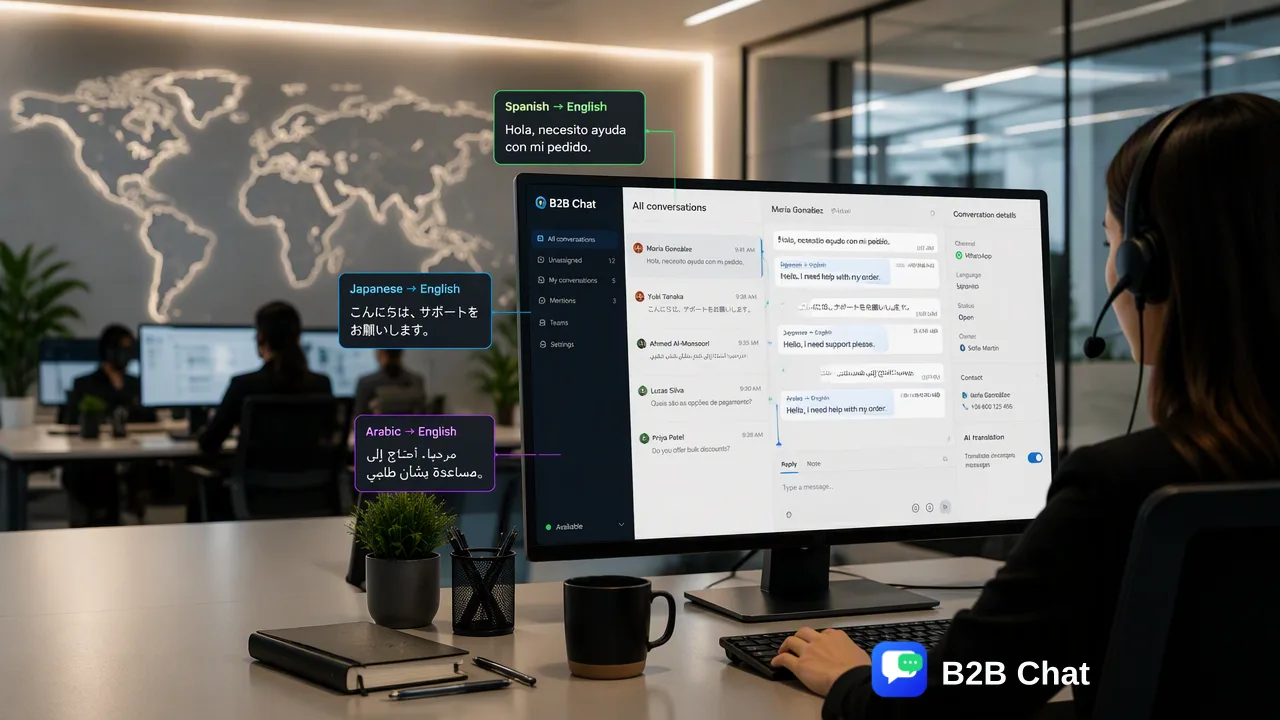
In one sentence: instead of copying messages back and forth between your chat app and a translation site, let translation happen inside the chat window — customer messages arrive in your language and your replies go out in theirs.
Most support agents on cross-border teams don't speak Indonesian, Spanish or Portuguese. The usual workaround is to copy the customer's message into a translation site, write a reply in your own language, translate it, and paste it back into WhatsApp. That's several round trips per message, it doesn't scale, and it's easy to paste into the wrong chat.
Where translation happens makes a big difference
Copying into a translation site. No extra tools, but every message means switching windows. It's slow, error-prone and loses the conversation context.
Browser or phone page translation. Helps you read the customer, but you still have to translate your replies yourself, and short, informal chat messages full of abbreviations don't translate well this way.
Two-way automatic translation inside the chat app. Incoming messages show their translation and what you type is translated before sending. Agents read and write in their own language without interrupting the conversation.
For teams handling a lot of overseas customers, the third option is by far the most efficient. Here's how to set it up with B2B Chat's WhatsApp translator.
The basics: two switches
Translation settings have two core switches:
- Translate received messages automatically: customer messages are translated into the language you choose. The customer's language is detected automatically, so you don't need to know it in advance.
- Translate sent messages automatically: type in your own language; the text is translated into the customer's language and shown before sending, and you can send the translation.
Turn both on and it's like having an interpreter built into the chat window.
Tip 1: set languages per conversation
One agent often serves customers from several countries at once: Spanish speakers in Mexico, Portuguese speakers in Brazil, Indonesian speakers in Jakarta.
Set default languages in the system settings for new conversations, then set the source and target language for any conversation that needs something different. The most recent setting wins, so conversations don't interfere with each other.
Tip 2: translate text in images
Overseas customers often send screenshots — order pages, tracking details, product labels, error messages. The app can recognise text in these images and translate it, so agents don't need a separate image translator.
Tip 3: check important messages before sending
AI translation now uses the conversation context and reads far more naturally than sentence-by-sentence machine translation. Still, for prices, quantities, refund amounts and delivery dates, take a quick look at the translation before sending:
- Write numbers, dates and model names explicitly instead of "this one" or "that";
- Keep to one point per sentence and break long sentences up;
- Use the same name for the same product or term throughout.
Combine translation with the AI agent
Translation solves reading and replying, but overseas messages keep coming after your team has gone home. Pair it with the AI agent: use assist mode to suggest answers from your knowledge base while agents are online, and auto mode to reply after hours, together with translation for customers in other languages.
Pricing
Ports in B2B Chat are free and unlimited. Translation is billed per request with no monthly fee — see Pricing for rates. If you haven't installed it yet, download the app, log in to WhatsApp and turn on both translation switches.